




Capy now tests your iOS and Android apps on cloud phones

Coding agents moved to the cloud because a laptop is the bottleneck. On your own machine you can only run as many agents as it can hold, and they stop when you close the lid. In the cloud they run side by side and keep working while you're away.
Mobile apps never made the move. An iOS build needs a Mac with Xcode, and checking a change means booting a simulator and tapping through the flow by hand. So even a cloud agent hands the last step of a mobile change back to someone's laptop.
Today that step moves to the cloud too. Capy builds your iOS and Android apps in the cloud, installs them on cloud iPhones and Android phones, and tests them the way you would, by looking at the screen, tapping through the flow, and reading the logs. We built cloud phones with Revyl, and they're live today on Capy Pro and Max plans.
Here's a walkthrough of how Capy adds an order tracker to Kiln, a coffee-ordering app.
Built in the cloud, installed on a phone
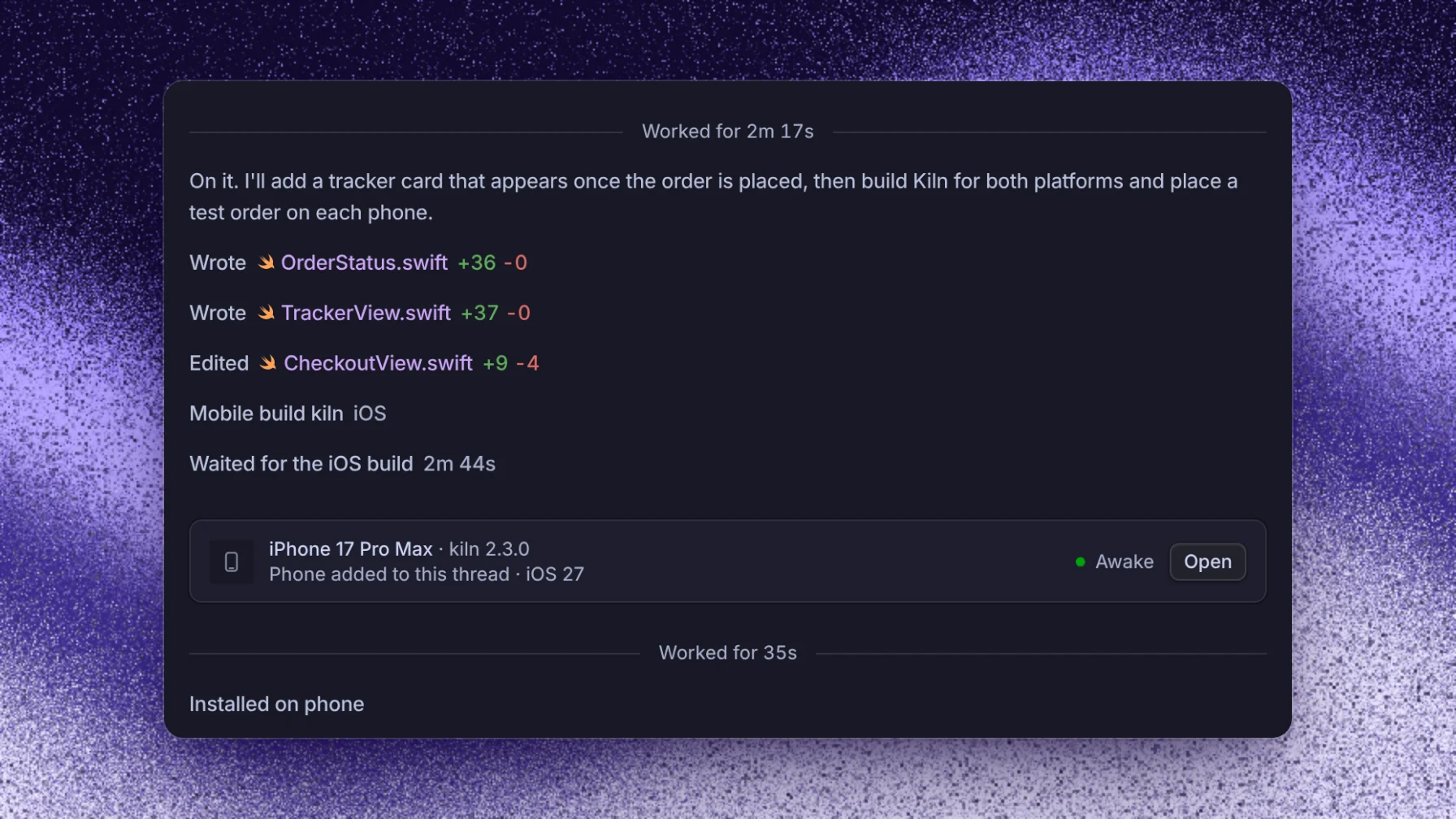
Capy writes the change on its cloud VM and builds the app in the cloud, so nobody on your team needs Xcode or Android Studio on their computer. Capy keeps working while the build runs and picks up again when it finishes. If the build fails, Capy reads the log and the suggested fix, patches the code, and starts the next build on its own.
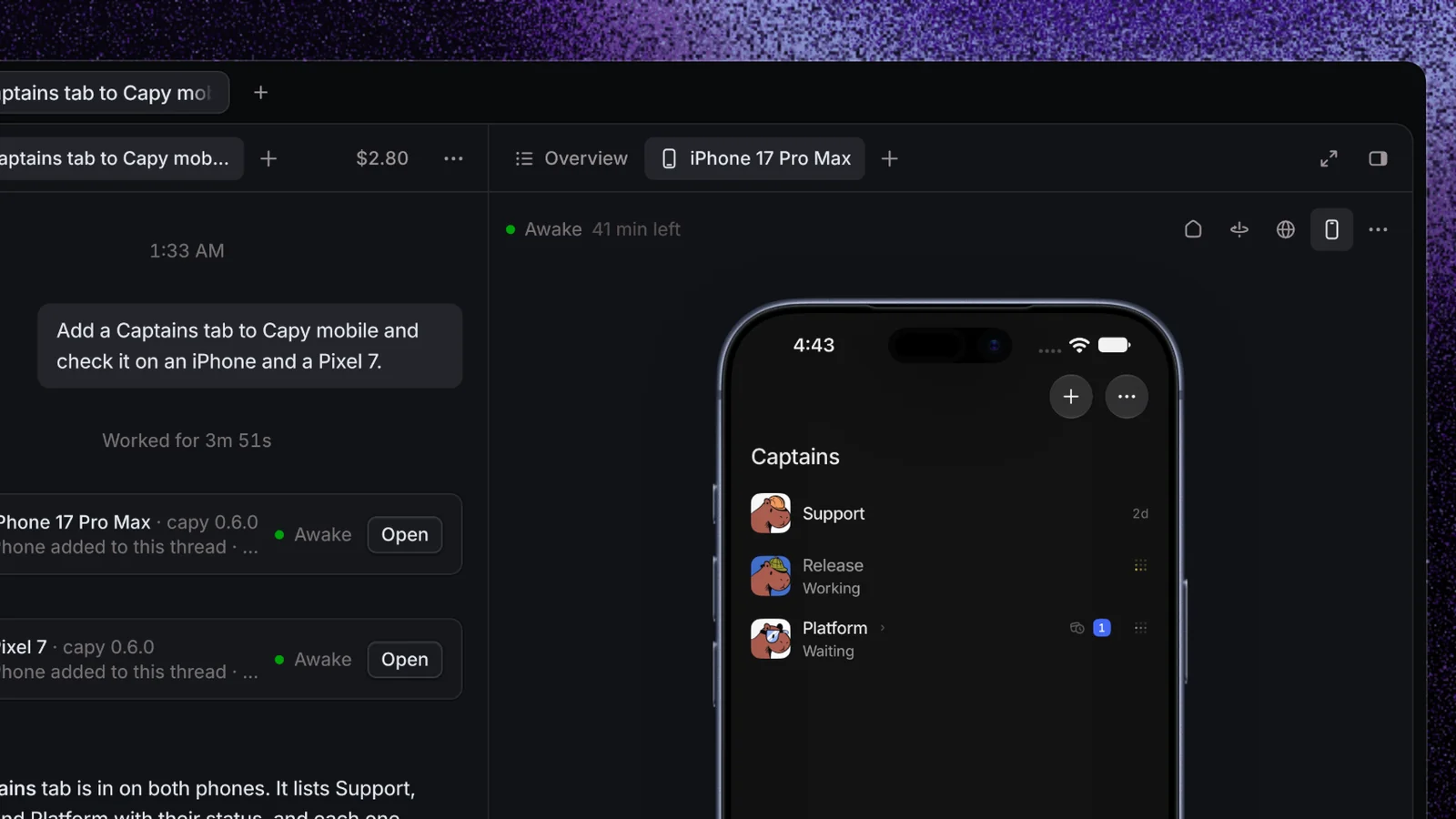
Once a build succeeds, Capy adds a phone to the thread and installs the app on it. The phone shows up as a card with its model, the app version, and whether it's awake. Open it, and the screen streams live next to the conversation.
Capy tests your app like a person would
Capy tests your app through mobile computer use. It sees the screen, taps, types, swipes, and reads the logs, the way you would check a change by hand.
Each screen reaches Capy as a screenshot and as a list of the buttons and fields on it with their labels, so it can tap Pay by name instead of guessing where the button is. When the screen it changed sits several taps deep, Capy opens a deep link and starts right there. It can press Home too, or Back on Android.
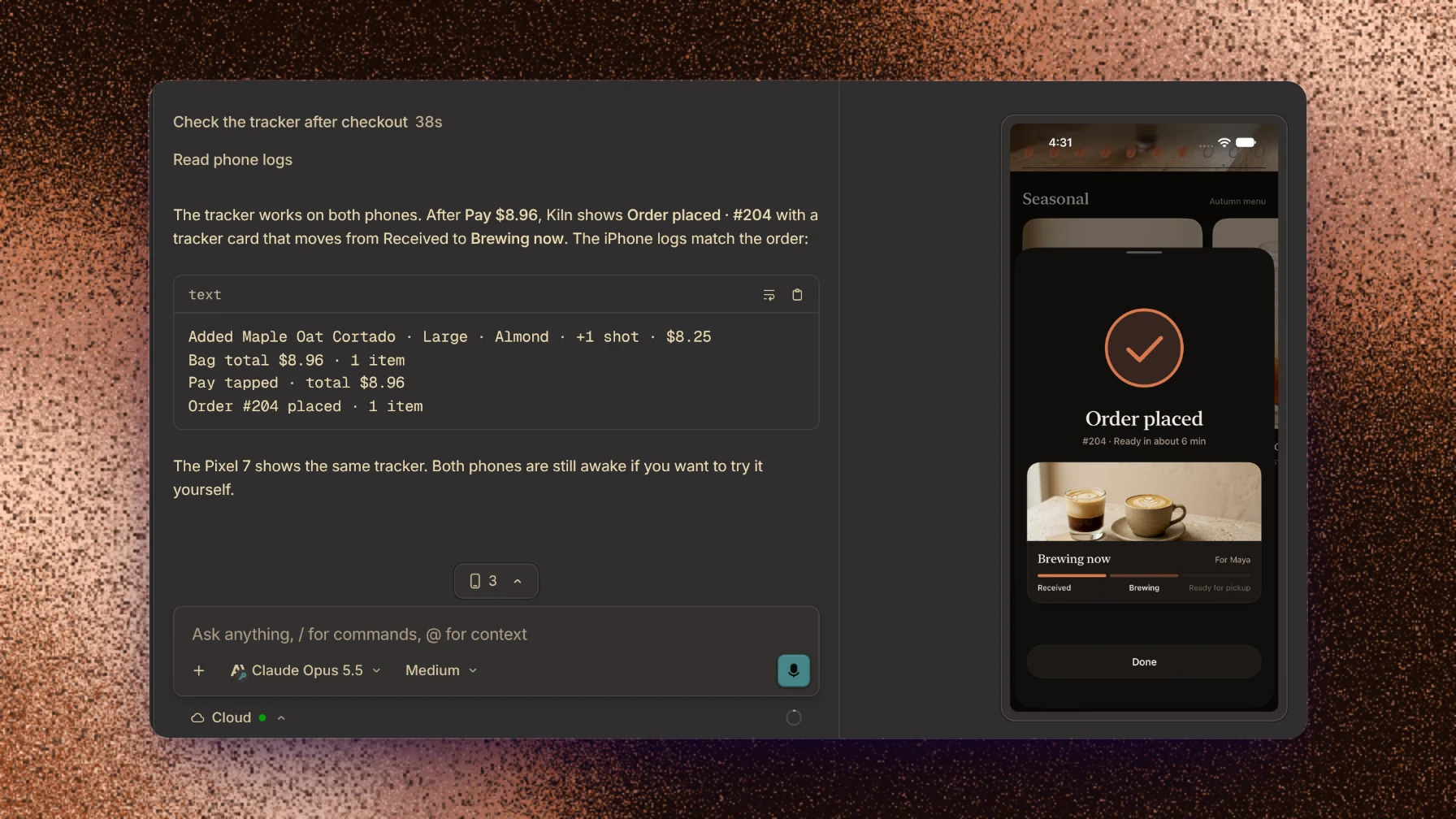
In the Kiln session, Capy added a Maple Oat Cortado to the bag, tapped Pay, and watched the new tracker card move from Received to Brewing now. Then it checked the logs. Capy can pull the newest lines or only the ones that mention a word, such as an order number. Here the log said "Order #204 placed", and the screen showed the same order.
Capy can also switch the phone to dark mode and back, so the change gets checked in both themes.
Every fix gets tested again
When the tracker doesn't show up, Capy fixes the code, builds again, and installs the new build on the phone that's already running. The phone keeps its session and its live stream, and on Android the app keeps its data as well.
Every screenshot Capy takes stays in the phone's tab, so you can scroll back through what it saw. By the time the PR shows up, the change has already been tested end to end on a phone.
One change on iPhone and Android
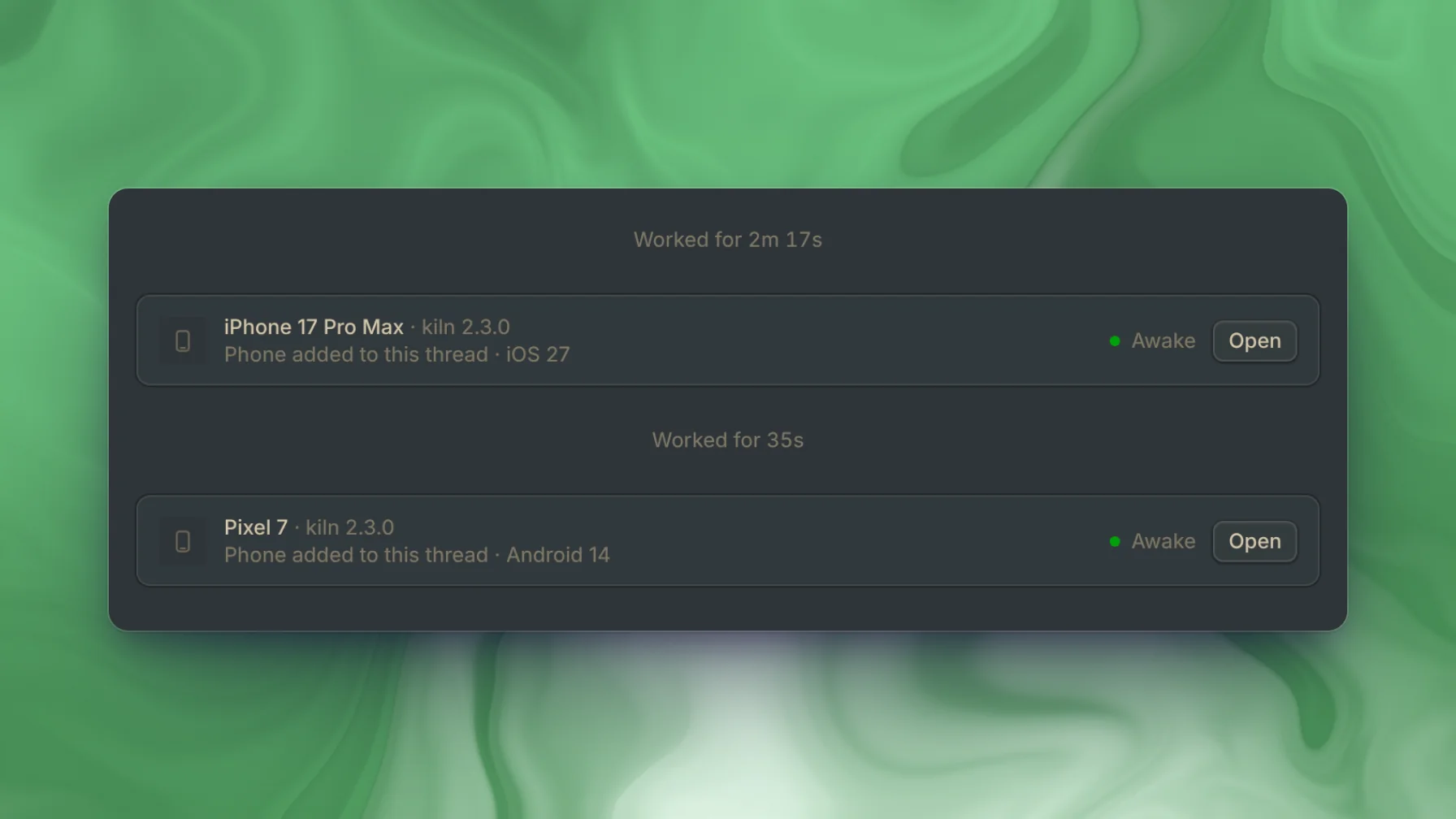
Capy can add an iPhone and a Pixel 7 to the same thread, install the change on both, and place the same order on each. On iOS you can pick any model from the iPhone 15 to the iPhone 18 Pro Max. If a layout looks wrong on one screen size, Capy switches the phone to another model and runs the check again, and an iPad Pro covers the tablet layout.
A phone doesn't need your app at all. Before any build exists, Capy can add a phone, open your mobile site in its browser, or go into Settings.
The phone is yours too
You can add a phone yourself from the thread's tab menu. From the phone's tab you can press Home, rotate the phone, open a link, switch to dark mode, or save a screenshot. When a phone goes to sleep it keeps its last build, so the app is already installed the next time it wakes.
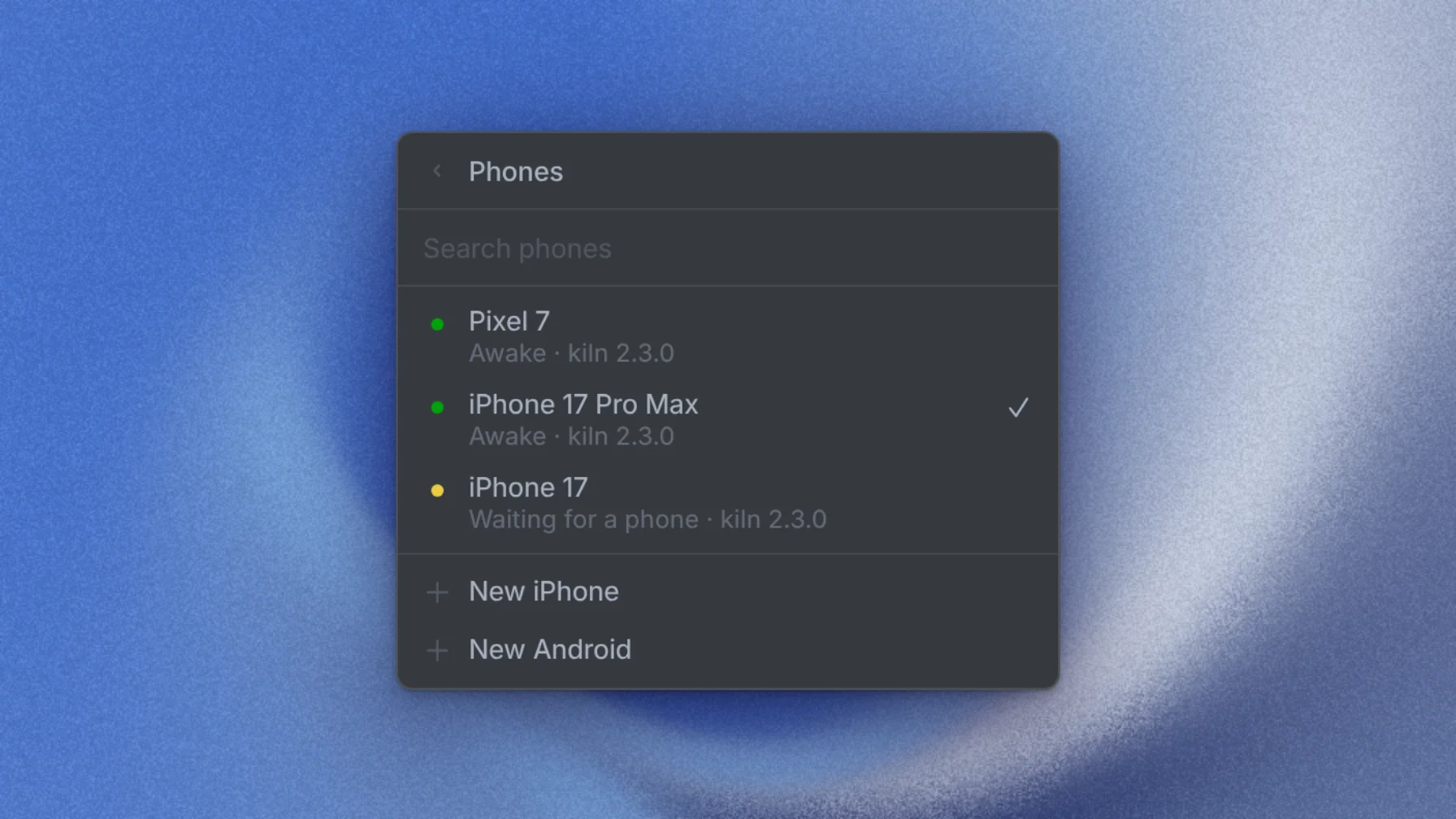
We're building our own mobile app this way. Capy threads build it for iOS and Android and test their changes on cloud phones.
Getting started
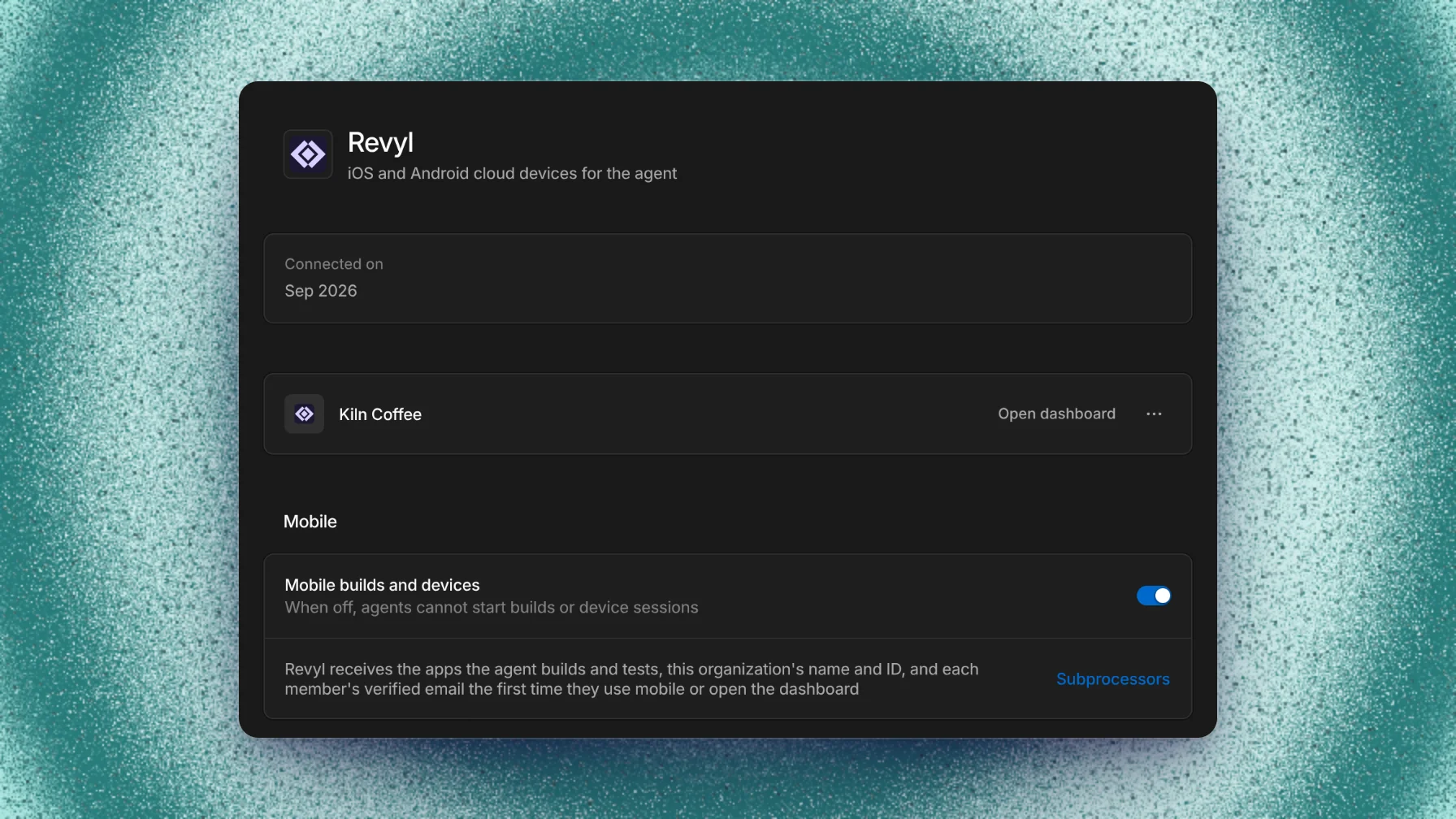
Cloud phones are available today for every Pro and Max workspace. Ask Capy to build your app and test it on an iPhone or a Pixel, and it adds the phone itself. Phone time is billed by the minute from your Capy credits, and admins can turn phones off for the organization in Settings, under Integrations.
Try cloud phones at capy.ai.
Ship your next feature with Capy